Categories: Find products , Dropshipping Guides
WooCommerceストアとSourcinBoxアプリの連携方法
By: SIB Content Team
April 30, 2026
16 min read

SIB Content Team
The SourcinBox Content Team is dedicated to providing insightful, data-driven, and actionable content for dropshippers and eCommerce entrepreneurs. With expertise in product sourcing, supply chain management, branding, and fulfillment automation, we help online sellers navigate the ever-evolving world of cross-border eCommerce.
多くの新規クライアントから「Woocommerceでドロップシッピングを行う際にSourcinBoxを利用できるか」との問い合わせをいただいたため、SourcinBoxアプリをWoocommerceと連携させました。これにより、Woocommerceの注文をSourcinBox経由で処理できるようになりました。
多くの新規クライアントから「Woocommerceでドロップシッピングを行う際にSourcinBoxを利用できるか」との問い合わせをいただいたため、SourcinBoxアプリをWoocommerceと連携させました。これにより、Woocommerceの注文をSourcinBox経由で処理できるようになりました。
WooCommerceユーザー様へのご案内
多くの新規顧客様から「WooCommerceでのドロップシッピングにSourcinBoxは使えますか?」というお問い合わせを頂いておりました。このたびWooCommerceとの連携機能を実装いたしました。これにより、WooCommerce注文をSourcinBox経由で処理できるようになります。
ステップ1:アカウント設定
SourcinBoxアプリに新規登録ログインを実行
ステップ2:ストア管理画面を開く
メニューから 「ストア管理」セクション を選択
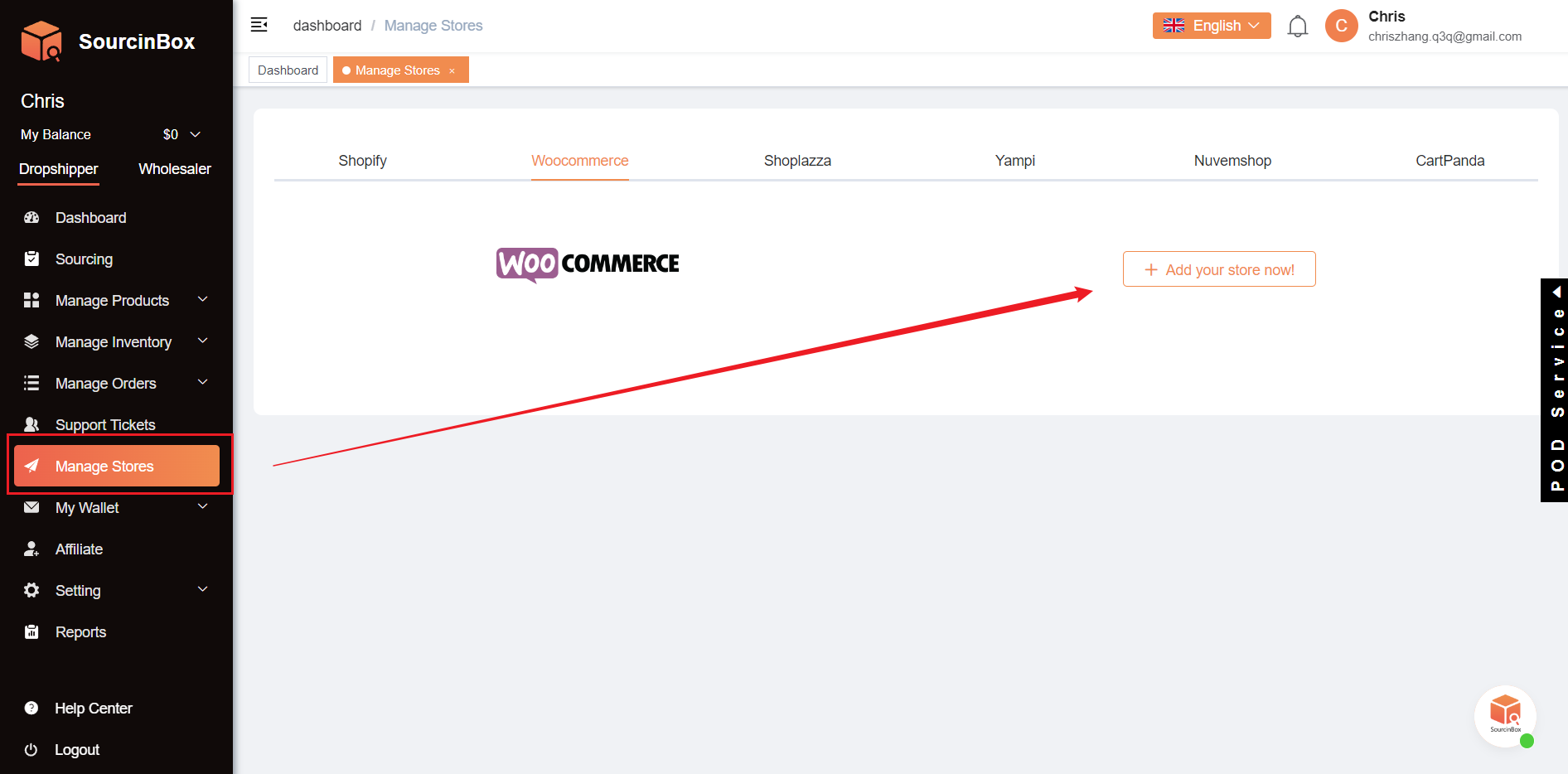
ステップ3:WooCommerce連携開始
「WooCommerceストアを今すぐ追加」 をクリック
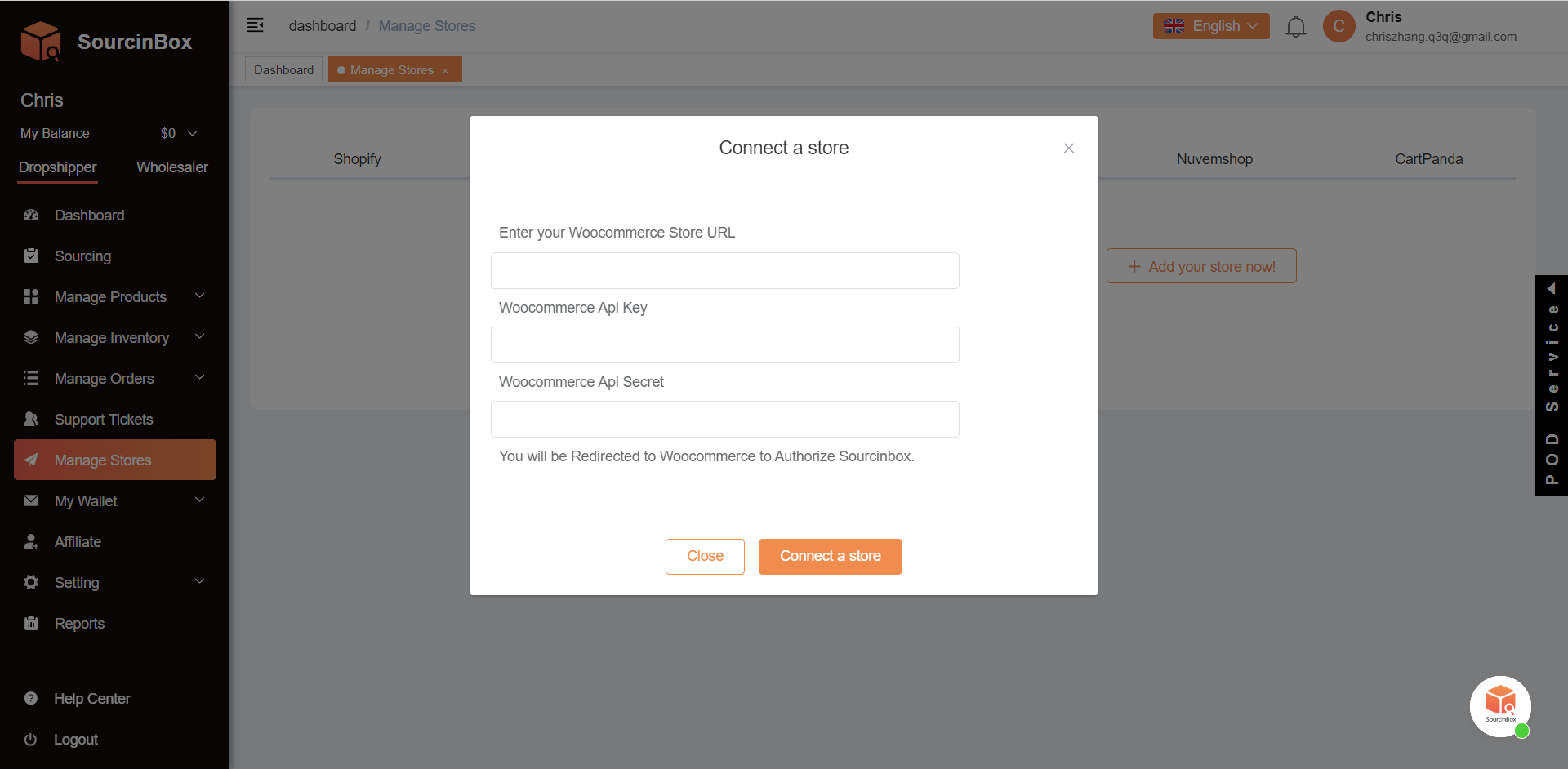
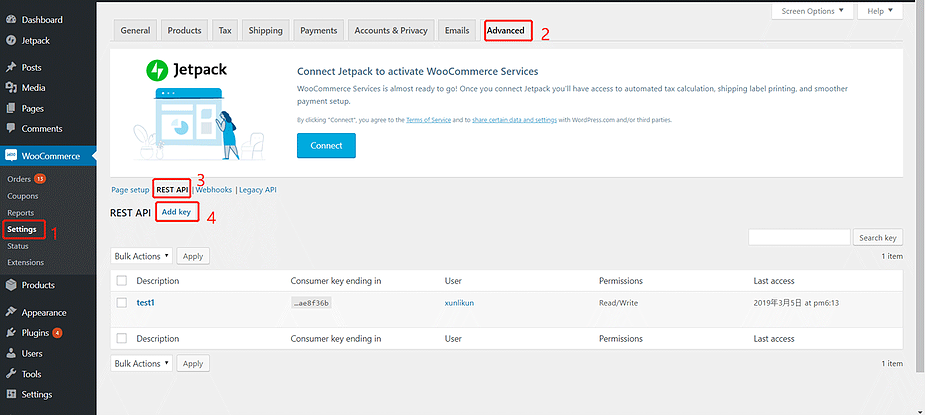
ステップ4:WooCommerce管理画面の操作
WooCommerce--> Settings(設定)--> Advanced( 高度な設定)--> REST API--> Add key(キーを追加)
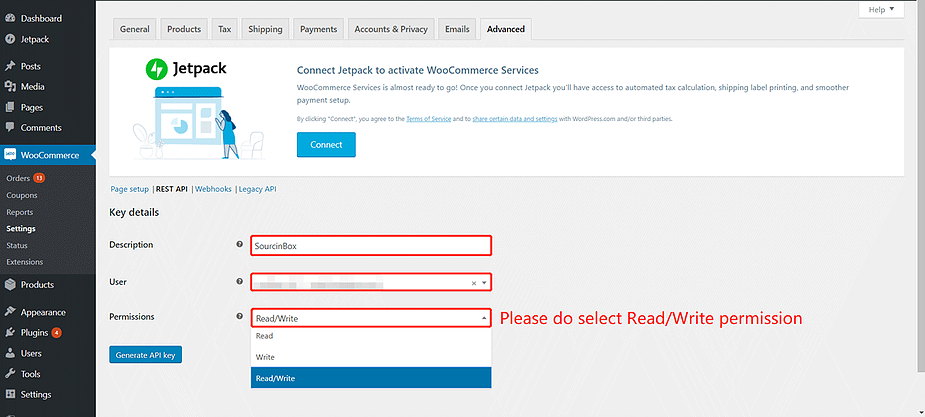
ステップ5:APIキー設定
Description(説明):SourcinBox
User(ユーザー):任意のユーザーを選択
Permissions(権限):**Read/Write(読み取り/書き込み)**を選択してください
ステップ6:認証情報の登録
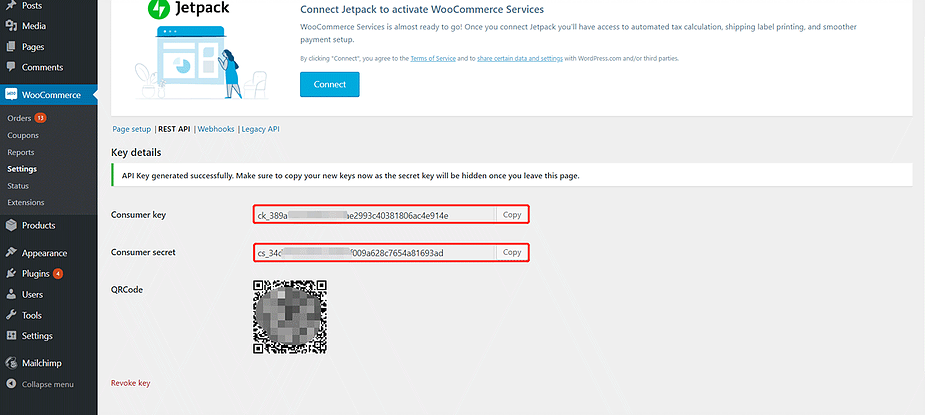
生成された 「Consumer Key」と「Consumer Secret」 をコピーSourcinBoxアプリの対応欄に貼り付け
ステップ7:接続完了
ShopifyストアをSourcinBoxと連携させたい場合は、こちらのガイドをご覧ください。
WooCommerceに関してご不明点やその他のご質問がございましたら、いつでもお気軽にお問い合わせください。
Share Article:




Ir para o Blog em Português →
Get the latest insights on the Latin American eCommerce market.
Start Your Online Business -For Free!
- Lower Price
- Faster Shipping
- Easier Order Fulfillment